Install Hot IPTV on Samsung TV in 5 Minutes
Most people think setting up live TV on a smart screen requires an engineering degree or shady hardware. It doesn’t. If you know how to use your remote to download Netflix, you already possess the exact skills needed to install Hot IPTV on your Samsung Smart TV. Forget the messy cables and complicated tech jargon. You just need your TV, your remote, and five minutes.
Quick Answer: How to Install Hot IPTV
To install Hot IPTV on a Samsung TV, press the Home button and open the Apps menu. Search for Hot IPTV and click install. Open the app to locate your MAC Address. Finally, upload your provider’s M3U playlist via the official Hot IPTV website using that specific MAC Address.
Key Takeaways:
- Zero extra hardware: The app lives officially inside the Samsung Smart Hub.
- It requires a playlist: Hot IPTV is an empty media player; you must get an M3U link from a separate live TV provider.
- Unique identification: Your TV generates a specific “MAC Address” to pair your playlist with your screen safely.
- Seven-day trial: You get a week to test the application before a one-time activation fee is required.
Step-by-Step Installation Tutorial
Step 1: Download from the Samsung Smart Hub
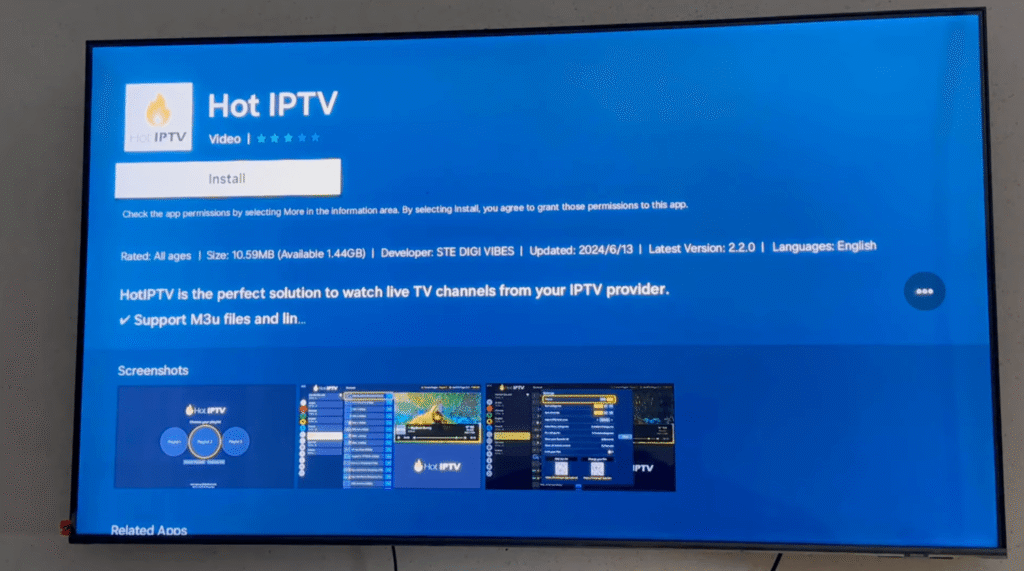
First, turn on your television and grab your remote. Press the Home button to pull up the bottom menu bar. Scroll to the left until you find the Apps icon (it usually looks like four small squares) and select it.
Navigate to the magnifying glass icon in the top right corner. Type Hot IPTV into the search bar. When the app’s fiery logo appears, click on it and hit Install. The Samsung Tizen OS will download the software in seconds.
Step 2: Locate Your TV’s MAC Address
Launch the newly installed application directly from your home screen. You will not see channels yet. Instead, the screen will display a welcome message featuring a 12-character code called a MAC Address (formatted like 00:1A:2B:3C:4D:5E).
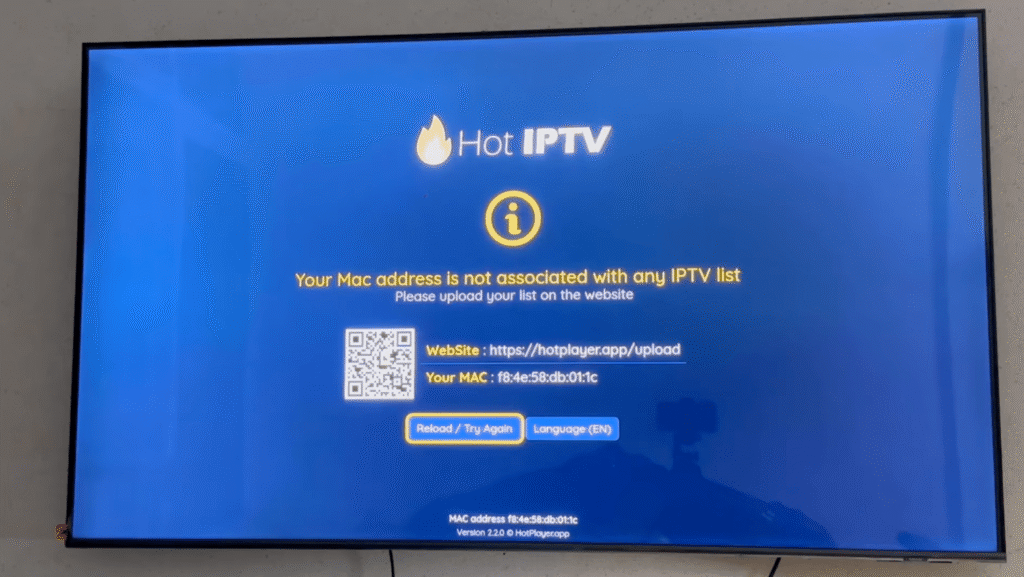
Take a clear photo of this screen with your smartphone. This code is your digital fingerprint. You absolutely need it for the next step.
Step 3: Upload Your Live TV Playlist
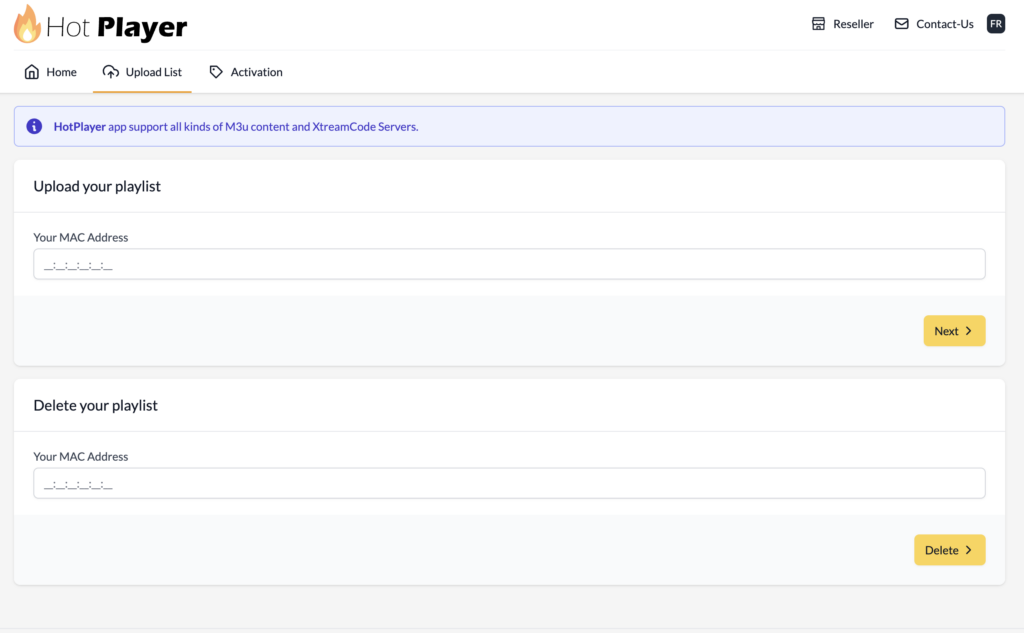
Put your remote down and switch to your smartphone or computer. Open a web browser and go to the official Hot IPTV upload portal. You will see two empty text boxes on the webpage.
In the first box, type the MAC Address exactly as it appears on your TV screen. In the second box, paste the M3U playlist link given to you by your IPTV service provider. Click “Save” or “Send.”
Return to your Samsung TV and restart the application. Your channels, movies, and Electronic Program Guide (EPG) will now populate the screen.
Expert Insight: The Tizen OS “Black Screen” Trap
Many basic tutorials stop right after the installation step. But having tested dozens of IPTV apps on Samsung hardware, there is a hidden pitfall you must know about: The Tizen OS Cache Trap.
Often, users upload their playlist perfectly, but the app shows a black screen or gets stuck buffering. People instantly blame the Hot IPTV developers. In reality, Samsung televisions aggressively store background cache. When the TV tries to load a massive live TV playlist with 10,000+ channels, the limited onboard memory chokes.
The fix is incredibly simple: Do not uninstall the app. Instead, while the TV is turned on, press and hold the power button on your remote for five seconds until the Samsung logo flashes on the screen. This performs a hard reset, clears the cache, and forces the app to successfully pull your provider’s channel list.
Furthermore, never pay for the app’s lifetime activation on day one. Wait until day six of your free trial. This gives you time to verify that your specific television model handles your provider’s streaming resolution without lagging.
Quick Troubleshooting Guide
If things go wrong, skip the panic. Check this reference table for the most common roadblocks beginners face:
| Error / Issue | Probable Cause | Instant Solution |
| “Playlist Error” on Screen | Typing error in the M3U link | Copy and paste the exact link on the Hot IPTV portal. Never type a long link manually. |
| Constant Buffering | Wi-Fi interference or ISP throttling | Move your Wi-Fi router closer to the TV, or hardwire an Ethernet cable directly into the back of the screen. |
| App Disappeared from Store | Samsung region restrictions | Change your TV’s Smart Hub region to “USA” or “UK” through the system settings. |
| Channels Won’t Load | Expired IPTV subscription | Contact your IPTV service provider to ensure your account is still active and fully paid. |
Answers to Common Questions
Why does Hot IPTV say my playlist failed to load on my Samsung TV?
This typically happens if the M3U link provided by your IPTV service is expired, or if there is a typo in your submitted MAC address. Double-check the exact spelling of your link on the upload portal and verify with your provider that your subscription is active.
Is Hot IPTV free to use forever on Samsung Tizen OS?
No. The software offers a completely free 7-day trial when you first install it on your television. After the trial expires, you must visit their official website to pay a one-time activation fee to keep using the player.
How do I update my IPTV channels inside the Hot IPTV app?
Press the “0” button or click the on-screen refresh icon using your Samsung remote while navigating the main menu. This forces the software to ping your provider’s server and pull the most up-to-date channel lineup and TV guide data.