Install TiviMate on Firestick: Full 2026 Guide
Most people give up before they even start — not because it’s hard, but because nobody explains it in plain English. TiviMate is not on the Amazon App Store. That single fact trips up thousands of people every week who search, find nothing, and assume it’s impossible.
It isn’t. You just need to know the back door.
Quick Answer (What You Actually Need to Know)
TiviMate cannot be downloaded directly from the Amazon App Store. To install it on a Firestick, you must first enable “Apps from Unknown Sources” in your device settings, then use a free helper app called Downloader to sideload TiviMate from the internet. The entire process takes under 10 minutes.
Key Takeaways:
- TiviMate is not on the Amazon App Store — sideloading is required
- The free Downloader app (available on Amazon) is the bridge that makes this possible
- You need an active IPTV subscription (M3U playlist or Xtream Codes) before TiviMate is useful
- TiviMate has a free tier, but the Premium version ($4.99/year) unlocks multi-screen and EPG features worth having
What You’ll Need Before You Start
Don’t skip this part. Starting without these items means stopping halfway through.
Hardware & Accounts:
- An Amazon Firestick (any generation — 4K, 4K Max, Lite, or standard HD)
- Your Amazon account credentials
- A stable Wi-Fi connection
Software & Services:
- The Downloader app (free on Amazon App Store)
- An IPTV service subscription — your provider will give you either an M3U URL or Xtream Codes login
Note: TiviMate is a player, not a content provider. It shows your IPTV subscription’s channels. Without a valid subscription, you’ll have an empty app.
Step 1: Enable “Apps from Unknown Sources” on Your Firestick
This is the step most guides bury. Do it first.
Go to your Firestick home screen and navigate to: Settings → My Fire TV → Developer Options → Install Unknown Apps
Once inside Developer Options, find Downloader in the list and toggle it ON. If you don’t see Developer Options, tap My Fire TV seven times — this unlocks the hidden developer menu on older firmware versions.
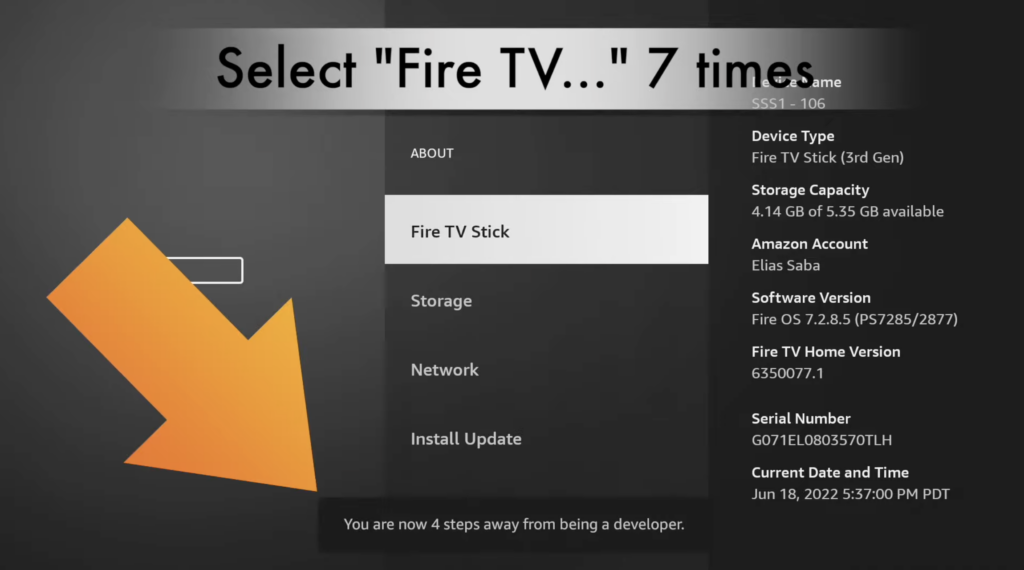
Why this matters: Amazon locks Firestick to its own App Store by default. Enabling this setting tells your device it’s allowed to install software you bring in yourself. It does not void your warranty and can be turned off afterward.
Step 2: Install the Downloader App from the Amazon App Store
From your Firestick home screen, use the search icon (top left) and type “Downloader.”
The app you want is made by AFTVnews — it has an orange icon with a white arrow. It’s free and has millions of downloads. Install it normally, just like any other Amazon app.
Downloader acts as a mini web browser that can grab files directly from the internet and install them on your Firestick. Think of it as the delivery driver that brings TiviMate to your door.
Step 3: Get the TiviMate APK Download URL
Open Downloader and tap the URL bar at the top. You need to type in a direct download address for TiviMate’s installation file (called an APK).
Use this URL:
https://tivimate.com/download
Or use a shortened URL that Downloader users commonly trust:
https://bit.ly/tivimateapk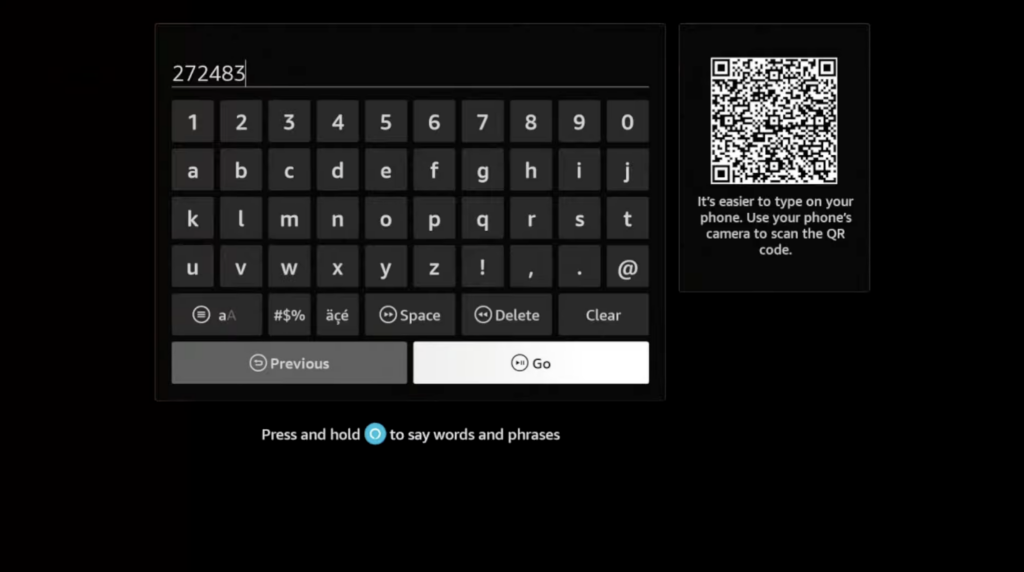
Pro tip: If you’re typing on a Firestick remote, use a Bluetooth keyboard or pair your phone as a remote via the Amazon Fire TV app — it makes entering URLs significantly faster.
Step 4: Download and Install TiviMate
After entering the URL, tap Go. Downloader will load the page and the file download will begin automatically. You’ll see a progress bar.
Once the download finishes (usually 30–60 seconds on a decent connection), a prompt will appear asking if you want to Install the app. Tap Install.
The installation only takes a few seconds. When it’s done, you’ll see an option to Open the app or Done. Tap Open to launch TiviMate immediately.
Step 5: Set Up TiviMate With Your IPTV Subscription
This is where TiviMate comes alive. On first launch, you’ll see a setup screen asking you to add a playlist.
If your IPTV provider gave you an M3U URL:
- Select “Add Playlist”
- Choose “M3U Playlist”
- Paste or type your M3U URL
- Give it a name (e.g., your provider’s name)
- Tap “Add”
If your provider gave you Xtream Codes credentials (a username, password, and server URL):
- Select “Add Playlist”
- Choose “Xtream Codes API”
- Enter your server URL, username, and password
- Tap “Add”
TiviMate will then load your channel list. Depending on how many channels your subscription includes, this can take 30 seconds to 2 minutes.
Step 6: Navigate TiviMate and Customize Your Setup
Once your channels load, you’ll land on the main guide screen — a TV grid layout showing channels and what’s currently airing.
Basic navigation with your Firestick remote:
- D-pad (directional ring): Browse channels and time slots
- Select button (center): Watch a channel
- Back button: Return to the guide
- Menu button (three lines): Open TiviMate settings
To organize your experience, tap Menu → Settings → Channels to sort, hide, or create Favorites groups. This is especially useful if your subscription has 5,000+ channels and you only watch 20.
TiviMate Free vs. Premium: Is It Worth Paying?
Short answer: yes, for most people.
| Feature | Free Version | Premium ($4.99/year) |
|---|---|---|
| Channel Playback | ✅ Yes | ✅ Yes |
| Electronic Program Guide (EPG) | ✅ Basic | ✅ Full 7-day guide |
| Multiple Playlists | ❌ 1 only | ✅ Unlimited |
| Multi-screen (Picture-in-Picture) | ❌ No | ✅ Up to 4 screens |
| Recording Channels | ❌ No | ✅ Yes (with storage) |
| Auto-Update Playlists | ❌ No | ✅ Customizable intervals |
| Panel Customization | ❌ Limited | ✅ Full control |
At $4.99 per year — not per month — it’s one of the cheapest app upgrades in streaming. The full 7-day Electronic Program Guide (EPG) alone makes it worth it, since you can see what’s coming on and schedule recordings.
Expert Insight: The Thing Nobody Tells You About TiviMate Performance
Here’s something the standard install guides skip entirely: TiviMate’s performance is largely determined by your IPTV provider’s server quality, not the app itself.
If your streams are buffering constantly after a clean install, most people blame TiviMate. They reinstall it, try different settings, switch players. In 80% of cases, the buffering is a server-side issue — peak hour congestion on your IPTV provider’s infrastructure.
The real fix: Test your streams at different times of day. Many budget IPTV providers over-sell their server capacity. If streams buffer every evening (peak hours) but run clean at 2am, you have a provider problem, not a Firestick problem.
A practical workaround: In TiviMate’s settings, increase the buffer size to 10–15 seconds (Settings → Player → Buffer Size). This won’t fix bad servers but will smooth out minor network hiccups. Also, try switching TiviMate’s built-in player to ExoPlayer instead of the default — it handles higher bitrate streams better on Firestick hardware.
Troubleshooting Common Problems
Problem: “App not installed” error during setup This almost always means Unknown Sources is still turned off for Downloader. Go back to Settings → My Fire TV → Developer Options and confirm the toggle is enabled specifically for the Downloader app.
Problem: TiviMate loads but channels show “Error” or won’t play Your M3U URL or Xtream Codes credentials may have expired or been entered incorrectly. Copy-paste from your provider’s welcome email rather than typing manually. Contact your IPTV provider to confirm your subscription is active.
Problem: Channels load but the EPG (program guide) is empty Your IPTV provider may use a separate EPG source. In TiviMate settings, go to EPG and enter the XMLTV URL your provider supplies. If they don’t provide one, free services like EPGSHARE01 or TellyTV offer compatible XMLTV feeds.
Problem: TiviMate isn’t appearing on your Firestick home screen after install Press the home button, scroll right to “Your Apps & Channels,” select “See All,” and find TiviMate there. Long-press to “Move to Front” so it appears on your home row.
How to Add TiviMate to Your Firestick Home Screen
After installation, TiviMate lives buried in your app library. To pin it to the home screen where you can find it instantly, do this:
From the home screen, navigate to “Your Apps & Channels” → “See All.” Scroll until you find TiviMate. Hold the Select button for 2 seconds until a menu appears. Choose “Move to Front.”
TiviMate will now appear as one of the first icons on your home screen row.
Is Installing TiviMate on Firestick Legal?
TiviMate itself is completely legal software. It’s a media player — the same category as VLC or Kodi. There is nothing illegal about downloading and installing it.
The legal question is always about the IPTV content, not the player. Using TiviMate with an authorized IPTV subscription (cable TV add-ons, legal streaming services that offer M3U outputs) is entirely lawful. Using it with unauthorized streams of copyrighted content is a separate issue governed by your country’s copyright laws.
Think of it like a browser: Chrome isn’t illegal. What you visit with it might be.
Answers to Common Questions
Can I install TiviMate on an older 1st or 2nd generation Firestick that’s running outdated firmware?
Yes, TiviMate supports older Firestick hardware, but you may experience slower load times and occasional lag on 1st generation devices due to limited RAM. If your Firestick is running Fire OS 5 or older, make sure you’re downloading a compatible APK version — TiviMate’s website usually notes minimum OS requirements on the download page. Consider clearing other apps to free memory if performance is sluggish.
Why does TiviMate keep asking me to log in or says my premium subscription has expired even though I just paid?
TiviMate Premium is managed through a separate account at tivimate.app, not through Amazon. After purchasing, you need to create an account on their website, activate your subscription, then log into that account inside TiviMate under Settings → Account. Many users pay via Google Play on a different device — that purchase is tied to your Google account, so you must sign in with Google inside TiviMate to restore it on Firestick.
Does TiviMate work with a VPN on Firestick, and should I use one with IPTV?
Yes, TiviMate works normally alongside VPN apps installed on your Firestick. A VPN encrypts your internet traffic before it leaves your device, which can help maintain privacy when using IPTV services. However, VPNs can occasionally reduce stream quality if the VPN server is slow or geographically distant — if you notice increased buffering after enabling a VPN, try switching to a server closer to your actual location or to your IPTV provider’s server region.