Install TiviMate on Chromecast (Google TV) 2026
Most IPTV guides make setting up a new app look like a hacker’s fever dream. It shouldn’t be. If you just bought a Google Chromecast and want to watch live TV, you don’t need a computer science degree to get things running. You just need to know exactly which buttons to press.
Quick Answer
To install TiviMate on a Chromecast with Google TV, navigate to the Search bar on your home screen. Type in “TiviMate IPTV Player” and select the official app. Click Install. If it is unavailable in your region, use the Downloader app to sideload the TiviMate APK directly.
Key Takeaways:
- No hacking required: TiviMate is natively available on the Google Play Store for most users.
- Sideloading is easy: If the official store fails, the Downloader method takes less than five minutes.
- Bring your own service: TiviMate is just a video player. You must input an M3U link or Xtream Code from your IPTV provider to watch live TV.
Method 1: The Official Google TV Setup (Easiest)
Forget about USB drives and complex developer modes. The newest Google Chromecast devices run a system called Google TV. This means they have a built-in app store just like your smartphone.
- Turn on your TV and grab your Chromecast remote.
- Scroll over to the Search tab at the top of your home screen.
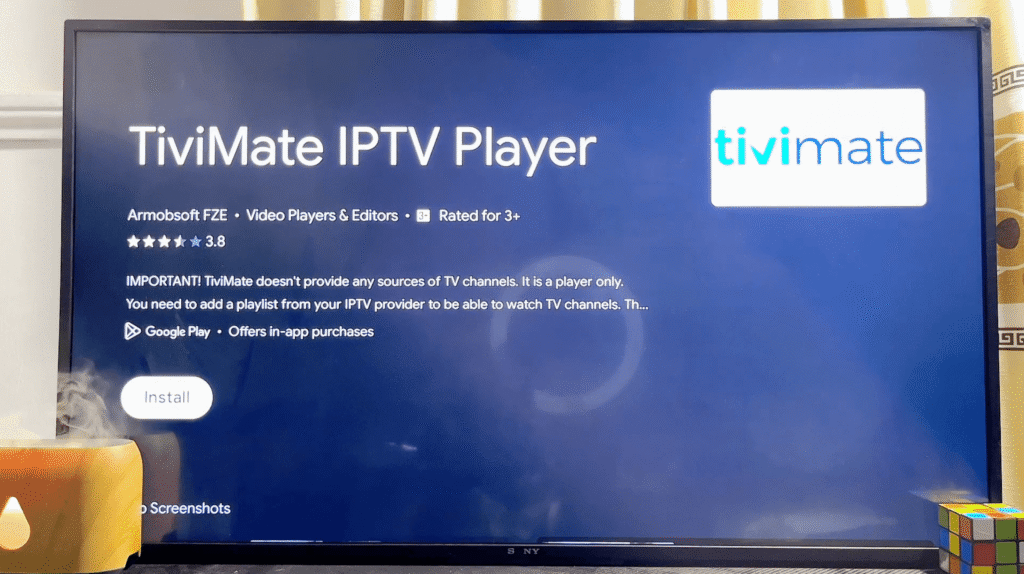
- Type or voice-search TiviMate IPTV Player.
- Look for the blue icon with the white play button. Click Install.
- Once downloaded, hit Open to launch the media player.
That is it. You are now ready to add your TV playlist and Electronic Program Guide (EPG).
Method 2: The Sideloading Backup Plan
Sometimes, Google Play Protect hides apps based on your geographic region. If TiviMate doesn’t show up in your search results, you will need to “sideload” it. This is a completely safe, standard practice for streaming devices.
Step 1: Get the Downloader App
Go to the Chromecast search bar and type in Downloader. Look for an orange icon and install it. This app acts as a web browser, allowing you to pull installation files right onto your TV.
Step 2: Enable Developer Permissions
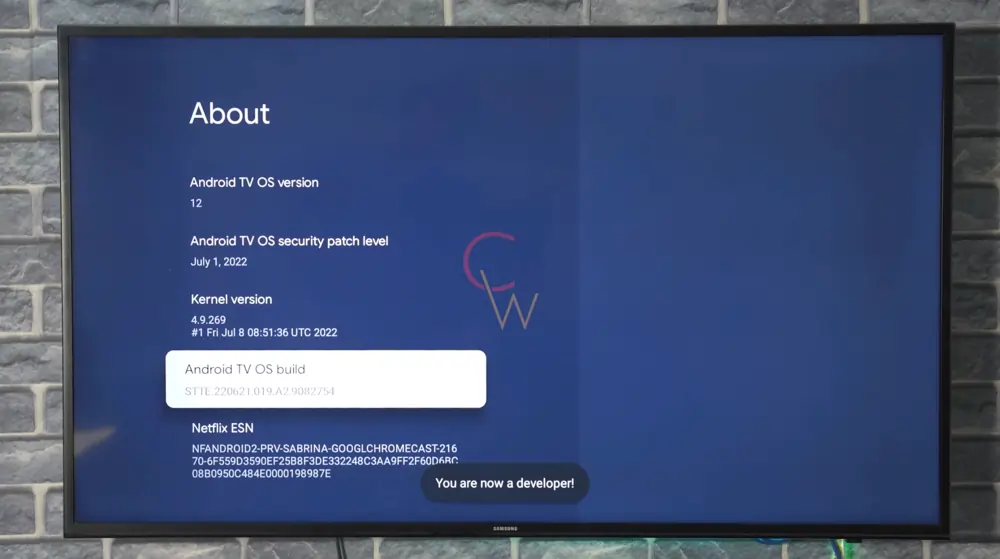
Your Chromecast will block unknown downloads by default. To fix this, go to Settings > System > About. Scroll down to Android TV OS Build and click the center button on your remote seven times fast. A message will pop up saying, “You are now a developer!”
Next, back out to Settings > Apps > Security & Restrictions. Find Unknown Sources and toggle the switch to the “On” position next to the Downloader app.
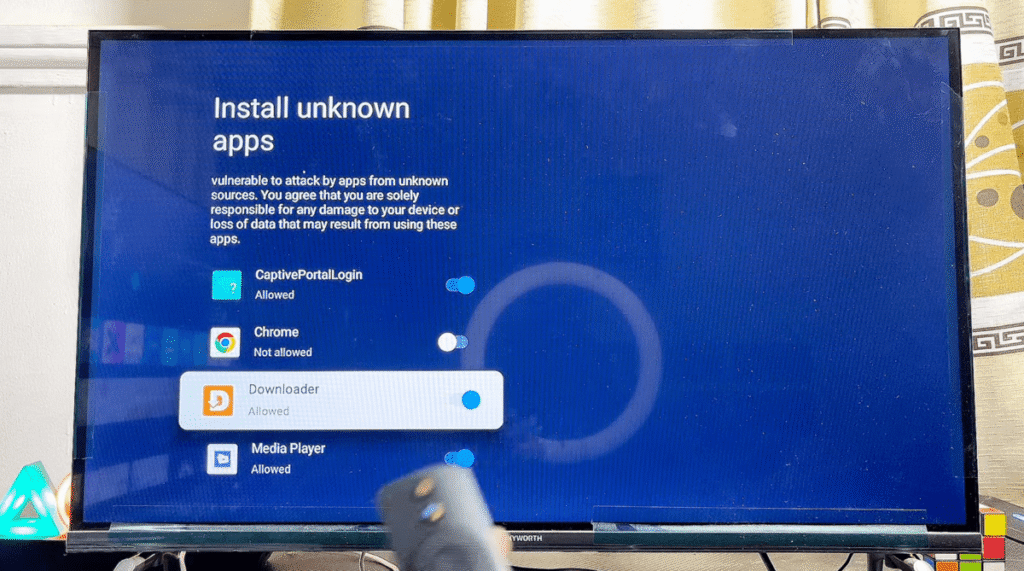
Step 3: Download the TiviMate APK
Open the Downloader app. In the URL bar, type exactly this code: 272483
This is the official shortcode for the latest TiviMate installation file (you can find the current official APK link via the TiviMate Reddit community). Hit Go. The file will download, and a prompt will ask if you want to install it. Click Install.
Expert Insight: The “Companion App” Trap
Here is a costly mistake most generic tutorials ignore: You cannot buy TiviMate Premium directly on your Chromecast.
If you want the premium features—like recording live TV, customizing your channel guide, or using multiple screens—you will quickly hit a paywall inside the TV app. Confused beginners often end up buying scam apps thinking they are paying for TiviMate.
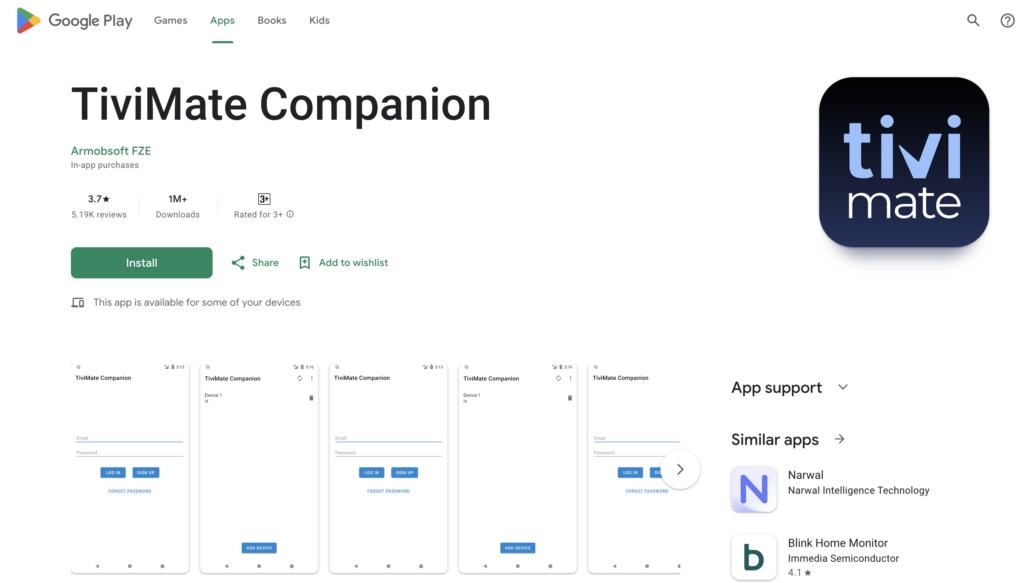
The reality: The developer forces you to use a separate Android application called TiviMate Companion to process payments. You must download this Companion app on an Android phone, register an account, and pay the $30 lifetime fee there. Once paid, you simply log into that same account on your Chromecast to unlock your premium features. If you only own an iPhone, you will have to install an Android emulator like BlueStacks on a computer just to buy the premium license.
TiviMate vs. IPTV Smarters Pro: Which Do You Need?
If you are a beginner, you might be wondering if TiviMate is actually your best option. Here is a breakdown of how it compares to its biggest rival.
| Feature | TiviMate IPTV Player | IPTV Smarters Pro |
| Interface Design | Looks like a modern, premium cable box | Looks like a mobile app stretched on a TV |
| Ease of Use | Best for navigating live TV guides | Best for beginners setting up their first link |
| VOD (Movies/Series) | Very basic layout | Excellent, Netflix-style layout |
| Price | Free version limited; Premium is $30 | Mostly free; Premium is roughly $1.50 |
| Best For | Live Sports and 24/7 Channel Surfing | On-Demand Movies and TV Shows |
Answers to Common Questions
Do I need a VPN to use TiviMate on Chromecast?
TiviMate itself does not require a Virtual Private Network. However, many Internet Service Providers (ISPs) actively throttle or block live streaming servers. If your live channels are constantly buffering or refusing to load, running a VPN on your Chromecast will bypass those restrictions.
How do I add my IPTV playlist to TiviMate?
When you open the app, click “Add Playlist.” Select “Xtream Codes Login” (recommended for beginners) and enter the server URL, username, and password provided by your IPTV service. The app will automatically sync your live channels and TV guide.
Why is my TiviMate app buffering constantly?
Buffering is rarely an issue with the application itself. It is usually caused by a weak Wi-Fi connection to your Chromecast or overloaded servers on your provider’s end. Try clearing the app cache in your Chromecast settings or moving your wireless router closer to your television.