Install Hot IPTV on LG TV: 2026 Step-by-Step Guide

Most people assume setting up IPTV on your TV requires a computer science degree or an expensive call to the local tech guy. It doesn’t. If you know how to use your remote to download Netflix, you already have the skills needed to install Hot IPTV on your LG TV.
Quick Answer: How to Set Up Hot IPTV on LG TV
Open the LG Content Store, search for “Hot IPTV,” and click Install. Open the app to find your TV’s MAC address. Go to the Hot IPTV website on your phone, enter this MAC address alongside your provider’s M3U link, and restart the TV app to load your channels.
Key Takeaways:
- It’s just an empty player: Hot IPTV does not come with free channels; you must purchase an M3U link from an independent TV service provider.
- Your TV has a unique ID: You will need your TV’s specific “MAC address” (found inside the app) to link your channels.
- Trial period: The app is free for 7 days, after which a small, one-time developer fee applies.
Step 1: Downloading the App
Your LG Smart TV runs on an operating system called webOS. This means you can’t use Android app stores. You must use LG’s built-in system.
- Press the Home button (the house icon) on your LG Magic Remote.
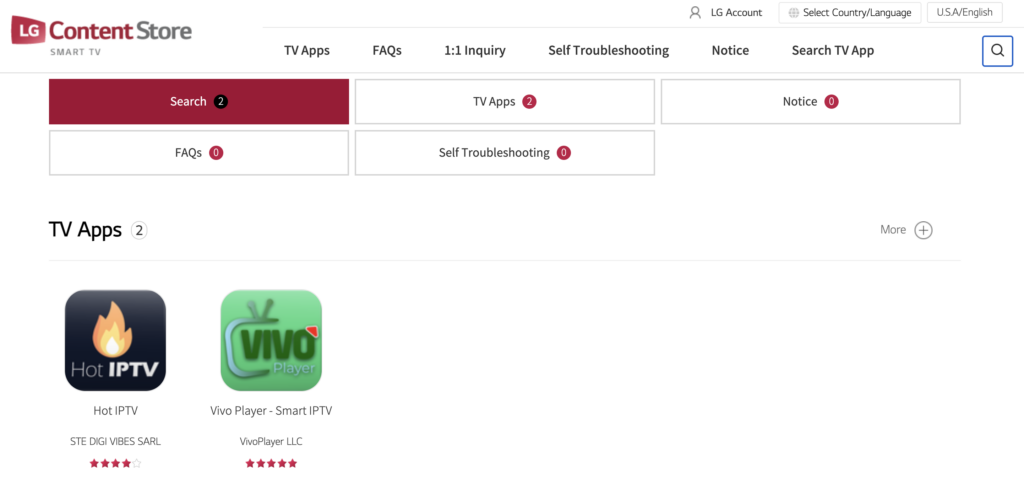
- Scroll through the bottom or main menu and click on Apps (formerly the LG Content Store).
- Click the Search icon (the magnifying glass) at the top right of the screen.
- Type in Hot IPTV using the on-screen keyboard.
- Select the app and click Install.
Once the download finishes, click Launch to open the application.
Step 2: Finding Your MAC Address
Think of the MAC address as your television’s personal phone number. The app needs this number to know where to send your TV channels.
When you open Hot IPTV for the first time, you will see a welcome screen displaying a 12-character code. It usually looks something like this: 00:1A:79:XX:YY:ZZ.
Write this exact number down on a piece of paper. You will need it in the next step. Do not share this number publicly.
Step 3: Uploading Your Channel List
You cannot type your long channel list (called an M3U link) directly into the TV using your remote. It takes too long and causes frustrating errors. Instead, we use your smartphone or computer.
- Open the web browser on your phone (like Safari or Chrome).
- Go to the official setup website: Hot IPTV Upload.
- Look for the box labeled MAC Address and type in the number you wrote down earlier.
- In the M3U URL box, paste the long web link provided by your TV service provider.
- Click the Save or Upload button.
Once the website says “Success,” pick up your LG remote. Close the Hot IPTV app on your television and reopen it. Your live channels, movies, and series will now load automatically.
Hot IPTV vs. Other LG TV Players
Not sure if Hot IPTV is the right choice for your living room? Here is how it compares to other popular webOS players in 2026.
| Feature | Hot IPTV | IPTV Smarters Pro | IBO Player |
| Ease of Use | Excellent (Best for beginners) | Moderate (Better for tech users) | Good |
| Menu Speed | Very Fast | Average | Fast |
| Setup Method | Phone/Website Upload | Remote Control Typing | Phone/Website Upload |
| Cost | 7-Day Trial, then ~$8 once | Free (Basic version) | 7-Day Trial, then ~$8 once |
Expert Insight: The DNS Trick Your ISP Doesn’t Want You to Know
As someone who has configured hundreds of smart home theater setups, I constantly see users blaming the Hot IPTV app for constant buffering or freezing. Nine times out of ten, the app is perfectly fine. The real culprit is your Internet Service Provider (ISP).
Many ISPs actively detect and throttle (slow down) heavy streaming traffic. To bypass this local network roadblock, you should change your LG TV’s DNS settings.
Go to your LG TV’s Settings > Network > Wi-Fi Connection > Advanced Settings. Uncheck “Set Automatically” and change your DNS Server to 8.8.8.8 (Google’s public server). This simple 30-second tweak masks your routing requests, stops provider throttling, and dramatically speeds up channel load times inside Hot IPTV.
Answers to Common Questions
Why is Hot IPTV saying “No Channels Found” on my LG TV?
This usually means your TV provider’s M3U link is typed incorrectly or has expired. Double-check the spelling of the link on the Hot IPTV upload website, ensure there are no blank spaces at the end, and hit save again. Restart your TV to force a refresh.
Do I have to pay for the Hot IPTV app after the trial?
Yes, Hot IPTV requires a one-time activation fee (usually around $8) after the 7-day free trial ends. You pay this fee directly on the app developer’s website using your MAC address, and the app remains unlocked on that specific TV forever.
How do I update my channel list when the M3U link stops working?
You do not need to uninstall the app from your LG TV. Simply open your phone’s browser, return to hotiptv.app/upload, enter your TV’s MAC address, and overwrite the old link with your new M3U playlist. Restart the TV app to sync the new channels.