Install IPTV Smarters Pro on FireStick 4K (2026 Guide)
Amazon doesn’t want you to know this, but your FireStick 4K is effectively a locked-down mini-computer. Out of the box, it actively prevents you from installing some of the best media players available. You are restricted to the Amazon Appstore, which heavily censors independent applications like IPTV Smarters Pro. We are going to bypass that restriction right now.
Quick Answer: How to Get IPTV Smarters Pro
To install IPTV Smarters Pro on a FireStick 4K, you must first enable “Install Unknown Apps” in your Developer Options. Next, download the free “Downloader” app from the Amazon Appstore, enter the official IPTV Smarters APK URL, and click install to bypass Amazon’s official store restrictions.
Key Takeaways:
- You will use a free Amazon app called Downloader to fetch the file.
- Amazon hides your Developer Options by default; you must unhide them.
- The entire setup takes under five minutes, even with zero tech skills.
- You will need an Xtream Codes API login from your media provider to watch content.
Expert Insight: The ISP Throttling Trap
Most tutorials stop the moment the app hits your home screen. As someone who has configured hundreds of FireOS streaming setups, I can tell you that installation is only half the battle.
Once you log into IPTV Smarters Pro, your Internet Service Provider (ISP) can see your incoming video packets. Major providers actively throttle (slow down) third-party streaming servers during peak evening hours. If your stream constantly stutters at 8:00 PM, it is rarely the app’s fault. You must run a trusted VPN in the background to encrypt your traffic, hiding your viewing habits from your ISP and preventing artificial buffering.
Step 1: Unhide Your Developer Options
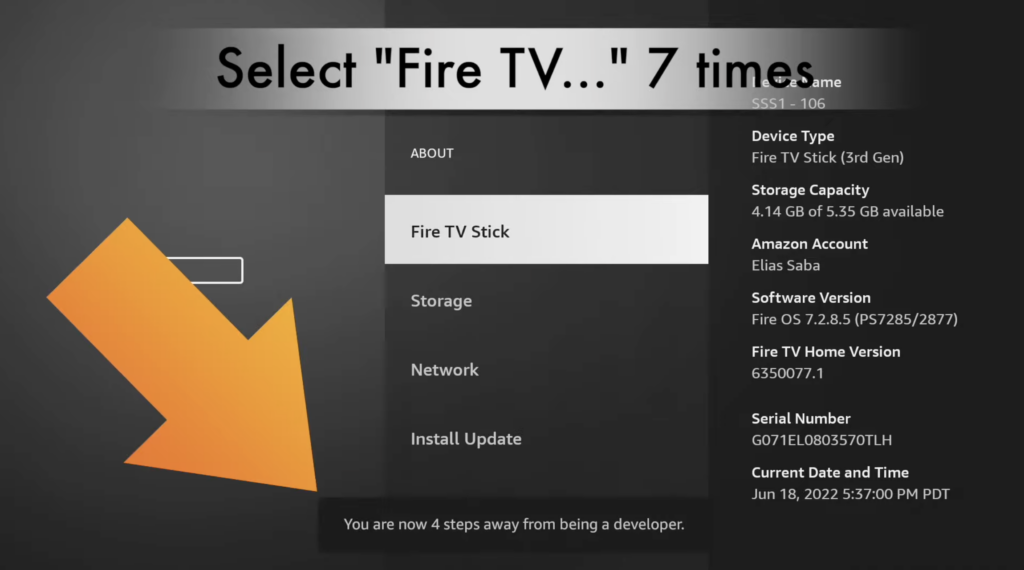
Amazon recently updated Fire OS to hide the settings menu you need. We have to reveal it first.
- Turn on your FireStick 4K and select the Gear Icon (Settings) on the far right.
- Click on My Fire TV.
- Click on About.
- Highlight the first option (your Fire TV Stick’s name) and click the center button on your remote 7 times quickly.
- A message will appear at the bottom reading: “No need, you are already a developer.”
Step 2: Enable Third-Party Installations
Now that you are an official “developer,” you can give your device permission to step outside the Amazon Appstore.
- Press the back button once to return to the My Fire TV menu.
- You will now see Developer Options. Click it.
- Select Install Unknown Apps (On older FireSticks, this is called Apps from Unknown Sources).
- Leave this screen open for now. We will return to it in a moment.
Step 3: Get the Downloader App
Since IPTV Smarters Pro isn’t in the official store, we need a bridge tool to download the installation file (known as an APK).
- Go back to your FireStick Home screen.
- Select the Find (Magnifying Glass) icon and click Search.
- Type the word Downloader.
- Select the orange Downloader app from the search results and click Download or Get.
Step 4: Sideloading IPTV Smarters Pro
This is where we actually install the player. Sideloading is just a technical term for downloading an app directly from the internet.
- Before opening Downloader, go back to Settings > My Fire TV > Developer Options > Install Unknown Apps.
- Find Downloader in the list and turn it ON.
- Now, open the Downloader app from your home screen.
- Click the URL box in the middle of the screen and type this number: 6468112
- Click Go. The file will download, and an install prompt will automatically pop up. Click Install.
Understanding Installation Methods
| Feature | Amazon Appstore | Sideloading via Downloader |
| App Availability | Highly restricted by Amazon | Limitless (Access to any Android app) |
| Installation Speed | 1-Click | Requires typing a URL |
| Updates | Automatic | Manual (Must download the new APK) |
| IPTV Smarters Pro | Not Available | Available |
Step 5: Logging In
When you first open IPTV Smarters Pro, it will ask for your login method.
Choose Login with Xtream Codes API. This is the standard format used by 99% of media providers. You will need to enter a Name (anything you want), a Username, a Password, and a Portal URL. You must get these four pieces of information from your specific media provider. IPTV Smarters Pro is just an empty video player; it does not come with any channels or movies built-in.
Answers to Common Questions
Why is IPTV Smarters Pro not in the Amazon Appstore?
Amazon frequently purges third-party media players that can process custom M3U playlists, citing copyright concerns. Because the app acts as a blank canvas for user-provided server links, Amazon opts to ban it rather than police how users utilize it.
Do I need a VPN to use IPTV Smarters on FireStick 4K?
While the app will physically open without a VPN, using one is highly recommended. A VPN masks your streaming traffic, preventing your Internet Service Provider from logging your activity or artificially slowing down your connection speed.
What do I do if the Downloader app says “Connection Refused”?
This usually means your ISP has implemented a DNS block against the download URL. To bypass this, activate a VPN on your FireStick before opening the Downloader app, or change your router’s default DNS settings to Cloudflare (1.1.1.1).