Install IPTV Smarters Pro on Google TV (Easy 2026 Guide)
You probably bought a Google Chromecast expecting to just search for “IPTV Smarters Pro” in the app store, click download, and grab some popcorn. The reality? It’s completely vanished from the official Google TV Play Store. Millions of users hit this frustrating dead end every day. You don’t need a computer science degree to bypass this block. You just need a remote control and five free minutes.
Quick Answer: How to Install IPTV Smarters Pro
To install IPTV Smarters Pro on Google TV or Chromecast, you must sideload the app. First, enable Developer Options in your system settings. Next, download the free “Downloader” app from the Play Store. Finally, enter the official APK link into Downloader to install.
Key Takeaways:
- You must use the free Downloader app to bypass Play Store restrictions.
- Developer Mode has to be unlocked on your TV to allow third-party installations.
- You will need your streaming provider’s Xtream Codes API or M3U playlist to log in once installed.
Expert Insight: The Storage Space Black Screen Trap
Most tutorials just tell you to download the app and walk away. Here is a reality check from countless real-world setups: Google Chromecast devices have notoriously low storage.
If you try sideloading IPTV Smarters Pro with less than 500MB of free space on your device, the installation will silently fail or leave you with a permanent black screen upon launch. Before you start the steps below, go to Settings > System > Storage and hit Clear Cache. Freeing up this space prevents the Android TV OS from throttling your installation process.
Step 1: Unlock Developer Options
Your Google TV is designed to block apps from outside the official store. We need to turn off this digital child lock.
- Navigate to the top right of your home screen and select the Settings gear icon.
- Scroll down and click on System, then select About.
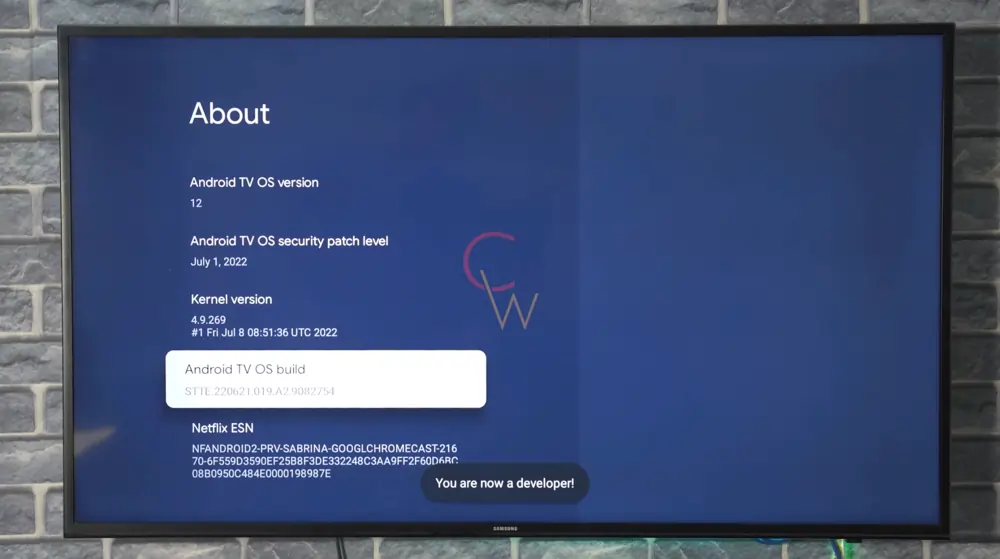
- Scroll down until you highlight Android TV OS Build.
- Click the middle button on your remote 7 times rapidly. A message will pop up saying, “You are now a developer!”
Step 2: Grab the Downloader Application
Since we can’t use a standard web browser to download files on a TV, we need a specialized tool.
- Go back to your Google TV Home Screen and select the Apps tab.
- Click the search bar and type Downloader.
- Look for the orange app titled “Downloader by AFTVnews”.
- Click Install and wait for it to finish. Do not open it yet.
Step 3: Grant Sideloading Permissions
Now we have to tell your Chromecast that it is safe to let the Downloader app install files.
- Go back to your main Settings gear icon.
- Select Apps, then scroll down to Security & Restrictions.
- Click on Unknown Sources.
- Find the Downloader app in the list and toggle the switch to the ON position.
Step 4: Download and Install the APK File
An APK is just the Android version of an installation file. We are going to fetch the official file directly.
- Open the Downloader app from your home screen.
- Click Allow when it asks for permission to access photos and media (it needs this to save the file).
- Click the URL search box on the home screen and type exactly this number: 6468112
- Hit Go. The file will automatically download.
- Once finished, a prompt will appear. Click Install, then click Open.
Sideloading vs. Official App Store Setup
| Feature | Sideloading via Downloader (Current Method) | Official Play Store (Old Method) |
| Availability | 100% Guaranteed | Frequently removed/banned |
| Setup Time | ~5 Minutes | ~1 Minute |
| App Updates | Must be updated manually | Updates automatically in background |
| Safety | High (if using official Smarters links) | High (Google Play Protect verified) |
Setting Up Your IPTV Subscription
Opening the app for the first time might look intimidating. Select the option that says Login with Xtream Codes API.
This is the easiest method for beginners. Your IPTV service provider should have emailed you a username, password, and a Server URL. Simply type those exactly as provided, click Add User, and your live channels and VODs will begin loading.
Answers to Common Questions
Why is IPTV Smarters Pro not on the Google Play Store?
Google frequently removes IPTV applications due to automated copyright flags, even though the IPTV Smarters Pro app is completely legal and hosts no content itself. Because of these strict app store policies, developers often rely on direct website downloads instead.
Is it safe to sideload apps on a Google Chromecast?
Yes, it is perfectly safe as long as you download the APK file from the official developer or a trusted source. Avoid typing random codes from YouTube comments into your Downloader app, as unverified files can introduce malware to your device.
How do I update IPTV Smarters Pro after sideloading it?
Because you installed the app outside of the Google Play Store, it will not auto-update. To get the newest version, you simply open the Downloader app, enter the official download link again, and run the installer over your existing app to upgrade it.