Install TiviMate on Firestick in 5 Minutes (2026)
Most people assume getting third-party apps on a television requires complex hacking or paying a local tech guru to “jailbreak” a device. It doesn’t. You are exactly five minutes away from turning your basic Amazon device into a high-end digital cable box.
You do not need a computer science degree to do this. You just need the right sequence of remote clicks.
Quick Answer
To install TiviMate IPTV Player on an Amazon Firestick, you must first enable “Apps from Unknown Sources” in your Fire TV settings. Next, install the free Downloader app from the official Amazon Appstore, open it, and enter this code 272483 to download and install the player.
Key Takeaways:
- No hacking required: You are utilizing built-in developer tools provided by Amazon.
- TiviMate is just a shell: The app itself does not contain live TV channels.
- You need a provider: You must connect a separate IPTV subscription using an M3U link or Xtream Codes.
- Downloader is mandatory: Because TiviMate isn’t in the Amazon Appstore, you must “sideload” it via the Downloader application.
Step 1: Unhide Your Developer Options
Amazon recently updated Fire OS to hide the specific menu you need. We have to bring it back first.
Grab your Fire TV remote and press the Home button. Navigate to the right and click the Settings gear icon. Scroll down and select My Fire TV.
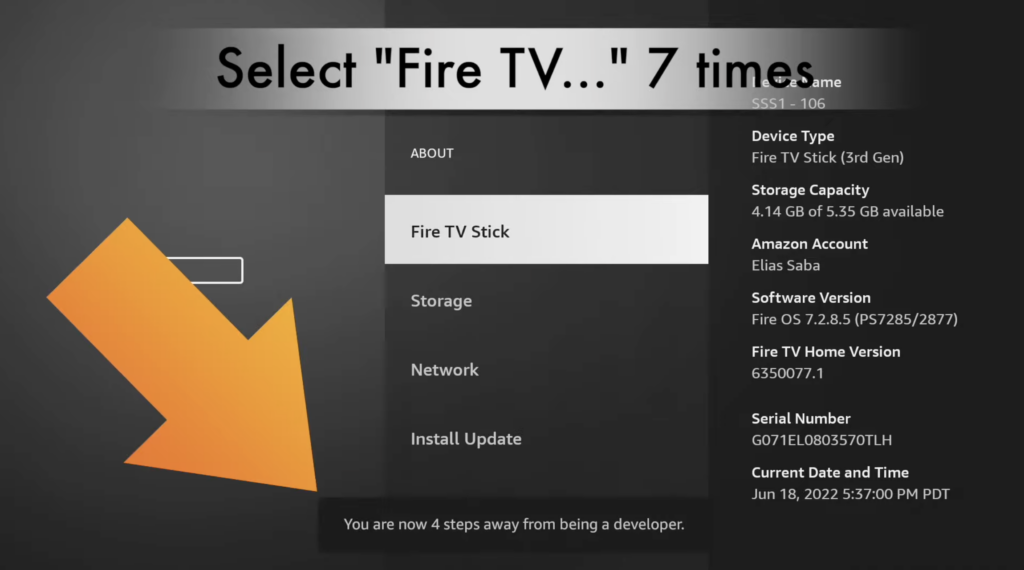
If you see Developer Options listed here, skip to Phase 2. If you don’t see it, click on About. Highlight the first option (usually named Fire TV Stick) and click the center button on your remote seven times quickly.
You will see a small message at the bottom of the screen saying, “No need, you are already a developer.” Hit the back button once, and Developer Options will now be permanently visible in your menu.
Step 2: Install the Downloader App
Since TiviMate is an independent Android application (an APK file), Amazon won’t let you search for it directly. We use a bridge app called Downloader to grab it from the internet.
Go back to your Firestick home screen. Navigate to the Find icon (the magnifying glass) and click Search. Type in Downloader. Look for the orange app icon with a downward-facing arrow.
Click Download or Get. Once it finishes installing, do not open it yet. We need to give this app permission to install other software.
Go back to Settings > My Fire TV > Developer Options. Click Install Unknown Apps. Find the Downloader app in the list and click it so it says ON.
Step 3: Sideload the TiviMate APK
Now it is time to put the actual media player onto your television.
Open the Downloader app from your home screen. When it asks for permission to access photos and files, click Allow. If you hit deny, the app cannot save the installation file.
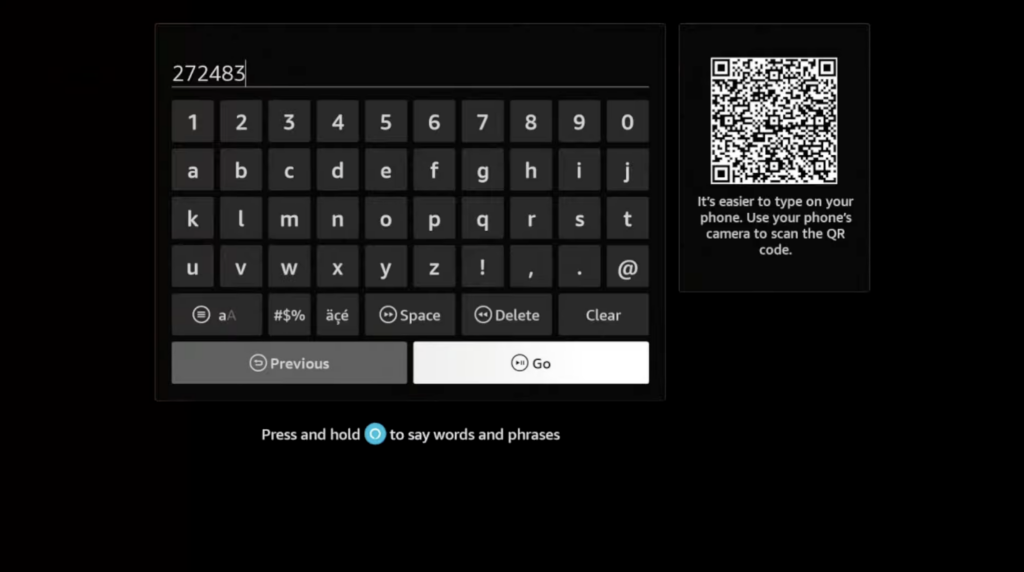
Click the URL search bar in the center of the screen. A digital keyboard will appear. Type in the official shortcode or URL for TiviMate. A widely used trusted shortcode for the official download is 272483 (or type tivimate.com/apk).
Click Go. The Downloader app will connect to the server and automatically download the file. Once it finishes, a prompt will appear on your screen—click Install.
Pro tip: If you’re typing on a Firestick remote, use a Bluetooth keyboard or pair your phone as a remote via the Amazon Fire TV app — it makes entering URLs significantly faster.
Expert Insight: The “Companion App” Trap
Most tutorials fail to warn beginners about the biggest hurdle with this software: You cannot buy TiviMate Premium directly on your television.
Because the app is sideloaded, it cannot safely connect to Amazon’s billing portal. If you try to unlock the premium features on your TV, you will hit a dead end. My strong advice: Do not buy “pre-loaded” TiviMate accounts from shady resellers on social media.
To unlock premium features like catch-up TV and multiple playlists, you must download the TiviMate Companion app from the Google Play Store on an Android phone. You create your account and pay the $7.99/year (or lifetime fee) on your phone. Then, simply log into that account on your Firestick. If you only own an iPhone, you will need to use an Android emulator like BlueStacks on a computer to access the Companion app.
TiviMate Free vs. TiviMate Premium
If you are wondering whether upgrading via the Companion app is worth the effort, here is what you actually get.
| Feature | TiviMate Free | TiviMate Premium |
| Basic Live TV Streaming | Yes | Yes |
| Electronic Program Guide (EPG) | Yes (Basic) | Yes (Advanced, Multiple) |
| Catch-Up TV (Watch past broadcasts) | No | Yes |
| Recording Capabilities | No | Yes |
| Customizable TV Guide Interface | No | Yes |
| Multiple IPTV Playlists | No | Yes |
Step 4: Add Your IPTV Playlist
Opening TiviMate right now will just show a blank screen. You need to link it to an IPTV provider.
When you purchase an IPTV subscription online, the provider will email you login credentials. Open TiviMate and click Add Playlist. You will see options for M3U playlist or Xtream Codes login.
Xtream Codes is the easiest method for beginners. Simply enter the server URL, your username, and your password exactly as provided in your email. Click Next, allow the TV guide to populate, and your television is fully set up.
Note: TiviMate is a player, not a content provider. It shows your IPTV subscription’s channels. Without a valid subscription, you’ll have an empty app.
Answers to Common Questions
Why is my Firestick missing the Developer Options menu?
Amazon pushed a software update that hides this menu by default to prevent accidental downloads. You can easily unhide it by going to Settings > My Fire TV > About, highlighting your device name, and clicking the center remote button seven times.
Does TiviMate come with free live TV channels?
No, TiviMate is exclusively a video player interface. It contains zero media content, movies, or live channels on its own; you must purchase a separate subscription from a third-party IPTV service to populate the guide.
Do I need a VPN to use TiviMate on my Firestick?
While not strictly required for the app to function, a VPN is highly recommended. Many internet service providers (ISPs) intentionally throttle bandwidth for unverified streaming traffic, and a VPN prevents this buffering while hiding your viewing history.