How to Pair a Roku Remote to Your TV (2026 Guide)
Most people assume their Roku remote is broken when it suddenly stops working. In reality, it has usually just lost its Wi-Fi Direct handshake with your TV. Whether you just unboxed a brand new Voice Remote Pro or your toddler threw your current remote across the living room, syncing it back up takes less than 30 seconds.
Quick Answer
To pair a Roku Voice remote, insert fresh batteries, press and hold the Pairing button (inside the battery compartment or on the back) for 5 seconds until the status light flashes. For remotes without a pairing button, simultaneously hold the Back and Home buttons.
Key Takeaways:
- Simple IR remotes do not require pairing; just ensure you have a direct line-of-sight to the TV.
- Rechargeable models like the Voice Remote Pro feature the pairing button on the external back casing.
- Hard reboot your Roku by unplugging the power cable for 5 seconds if the remote refuses to sync.
Expert Insight: The Router Proximity Trap
Most troubleshooting guides tell you to blindly replace the batteries. Working in home theater setups, I see a completely different culprit 90% of the time: Wi-Fi interference.
Roku Voice Remotes don’t use infrared (IR) light to communicate; they use a dedicated wireless protocol. If your home internet router is sitting right next to your Roku TV or streaming stick, the 2.4GHz Wi-Fi signal often jams the remote’s pairing frequency. If your controller simply won’t flash green during setup, physically move your router three feet away from the TV. Alternatively, log into your router and manually switch the 2.4GHz channel to avoid the interference block.
Which Roku Remote Do You Have?
Before pressing random buttons, you must identify your device. Roku essentially makes two types of controllers, and they connect to your television in completely different ways.
| Feature | Roku Simple Remote (IR) | Roku Voice Remote (Wi-Fi) |
| Technology | Infrared (Requires line-of-sight) | Wi-Fi Direct (Works through walls) |
| Voice Search | No microphone button | Yes (Microphone or magnifying glass icon) |
| Pairing Mechanism | None | Yes (Button or Back/Home combo) |
| Setup Process | Works instantly, no syncing required | Requires a manual pairing process |
Step-by-Step: How to Pair a Roku Voice Remote
Most modern Roku devices ship with a Voice Remote. Follow these steps to establish a fresh connection.
Method 1: Using the Physical Pairing Button
- Prepare the hardware: Unplug your Roku TV or streaming stick from the wall outlet, wait 5 seconds, and plug it back in.
- Access the battery compartment: Slide off the back cover of your remote. If you have a rechargeable model, inspect the physical back of the controller.
- Trigger pairing mode: Press and hold the small, circular pairing button for exactly 5 seconds.
- Watch for the status light: A small green or purple light will begin flashing. An on-screen menu will automatically appear on your TV confirming the connection.
Method 2: Remotes Without a Pairing Button
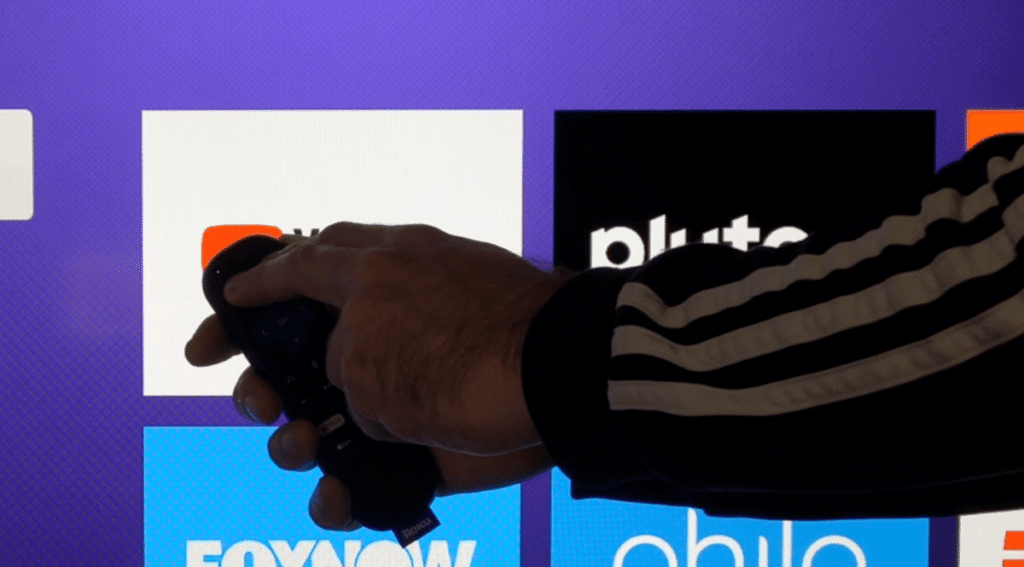
Newer Roku remotes removed the physical sync button entirely. If you cannot find one under the battery cover, use the button combination method.
Simultaneously press and hold the Back button and the Home button. Keep them held down for exactly 5 seconds. The remote’s status light will flash, pushing the hardware into discovery mode. Keep the controller within three feet of your TV until the on-screen prompt confirms a successful sync.
Advanced Troubleshooting: When Your Remote Refuses to Sync
Sometimes the standard steps fail. Here are two advanced ways to force a connection.
Use the Roku Mobile App as a Bridge
If you cannot get the physical remote to sync, download the free Roku mobile app on your smartphone. Connect your phone to the same Wi-Fi network as your TV. Use the app’s digital digital controller to navigate to Settings > Remotes & devices > Add devices > Remote. This forces the Roku TV’s operating system to actively scan for your physical remote.
Check Your HDMI-CEC Settings
If your Roku stick is plugged into a soundbar or AV receiver rather than directly into the TV, HDMI-CEC handshake errors can block controller commands. Plug the Roku directly into the TV’s primary HDMI port. This rules out third-party hardware interference blocking your setup.
Answers to Common Questions
How do I pair a Roku remote to a different TV?
To sync your Roku remote to a new television, factory reset the remote by removing the batteries and unplugging the old TV. Plug in the new TV, reinsert the batteries, and press the pairing button (or Back + Home) for 5 seconds. This overwrites the old Wi-Fi Direct connection with the new device.
Why is my Roku remote blinking green but not pairing?
A flashing green light means the remote is successfully in discovery mode, but the TV isn’t receiving the signal. This usually happens if the Roku device needs a hard reboot (unplug it for 30 seconds) or if your home Wi-Fi router is sitting too close and causing frequency interference.
Can I use any Roku remote as a replacement?
Voice Remotes (Wi-Fi) are universally compatible with almost all modern Roku players and Roku TVs. However, Simple Remotes (IR) will only work with Roku TVs (like TCL or Hisense models) and older set-top boxes that have built-in infrared receivers. Streaming sticks hidden behind the TV strictly require a Voice Remote.